


How to Diagnose Issues & Order Parts Faster with My Komatsu
In the heavy equipment industry, you don’t have time to waste time. When a machine with a problem rolls into the shop, you diagnose the issue, order the parts, and get it fixed because every minute that machine is down costs money.
That’s where My Komatsu comes in. This free owner / operator dashboard was built for maintenance teams. It has some pretty unique features that were designed specifically for service managers, field technicians, and shop technicians. Below, you’ll find a step-by-step guide for each of the top five maintenance tasks you can complete in My Komatsu.
Please note: Screens and functionality may change. For the most up-to-date information, get in touch with your Berry Tractor Product Support Sales Rep today.
1. Fast Access to Abnormalities and Troubleshooting Information
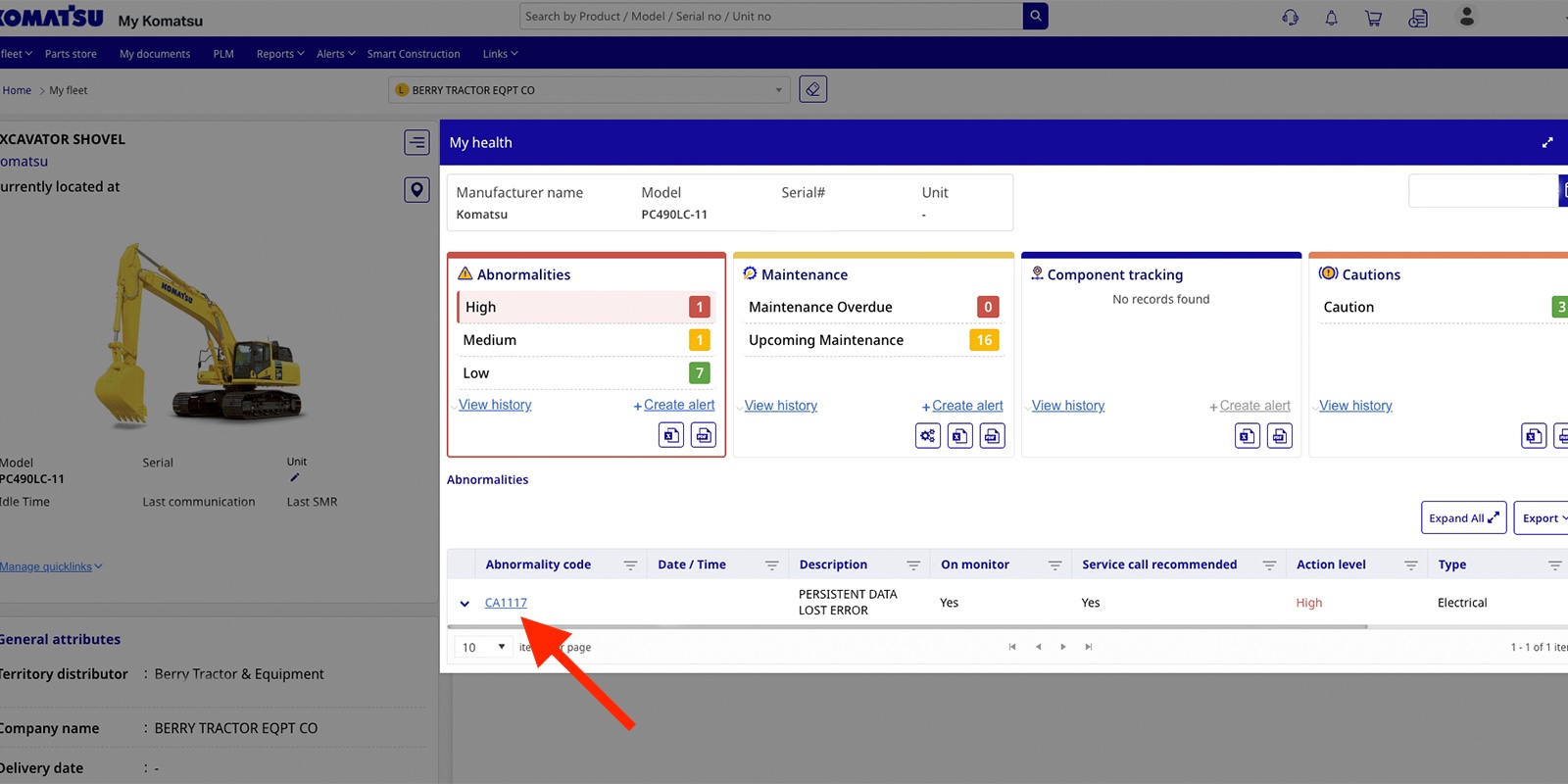
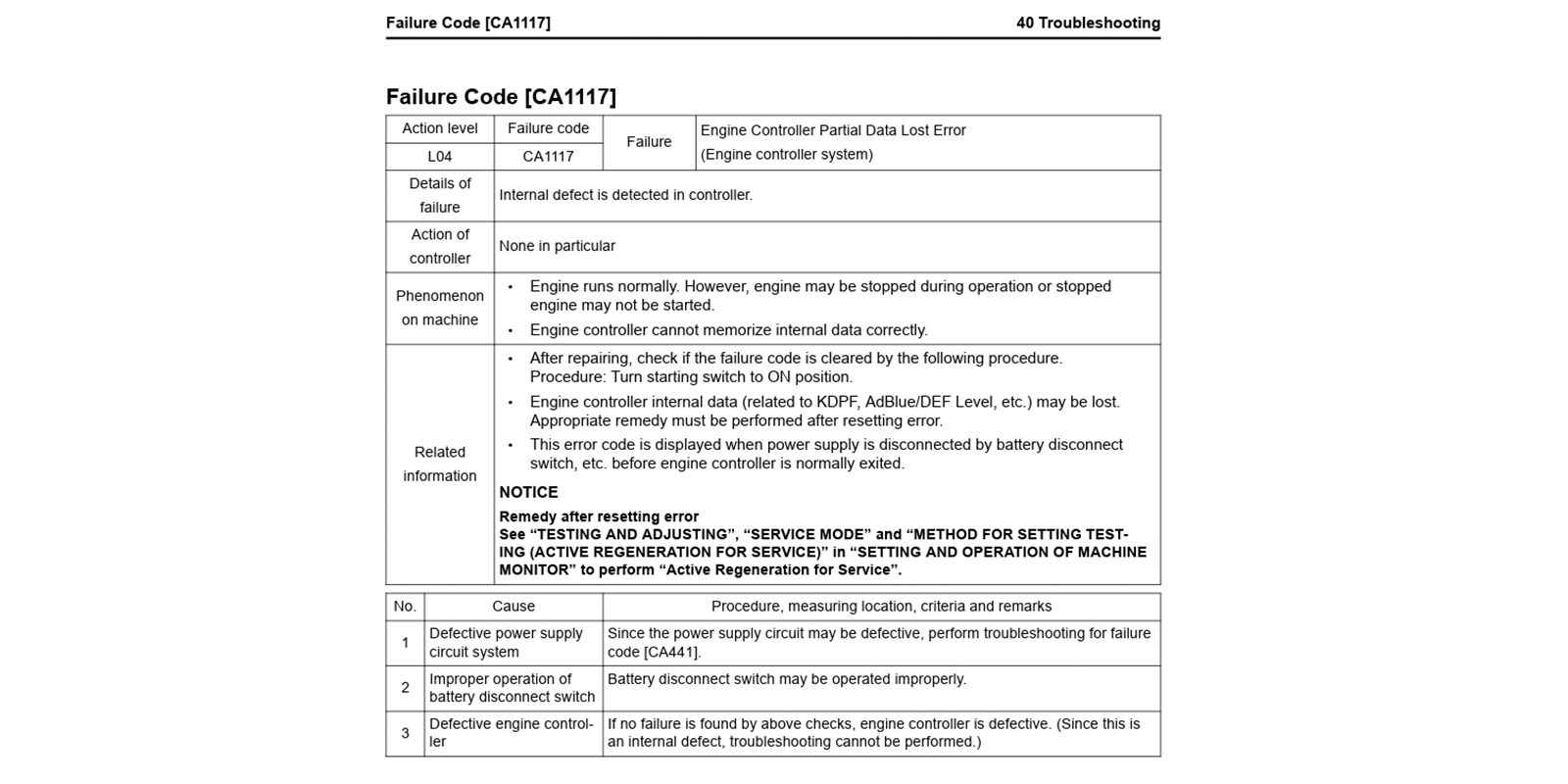
Fast access to troubleshooting information in My Komatsu is especially useful when you’re working on the fly. If an operator calls from a job site because their Komatsu excavator is showing a code, you can quickly pull up the machine on your dashboard, view the code, and access the related troubleshooting information. This removes the need for online searches or paper manuals when you’re diagnosing an issue.
To view troubleshooting information in My Komatsu:
- From the My Fleet page, click the machine’s serial or unit number.
- Click the My Health tab (to the right of the machine image).
- Click the abnormality in question to open the troubleshooting guide.
2. Blown-Up Parts Diagrams That Match the Machine You Are Working On
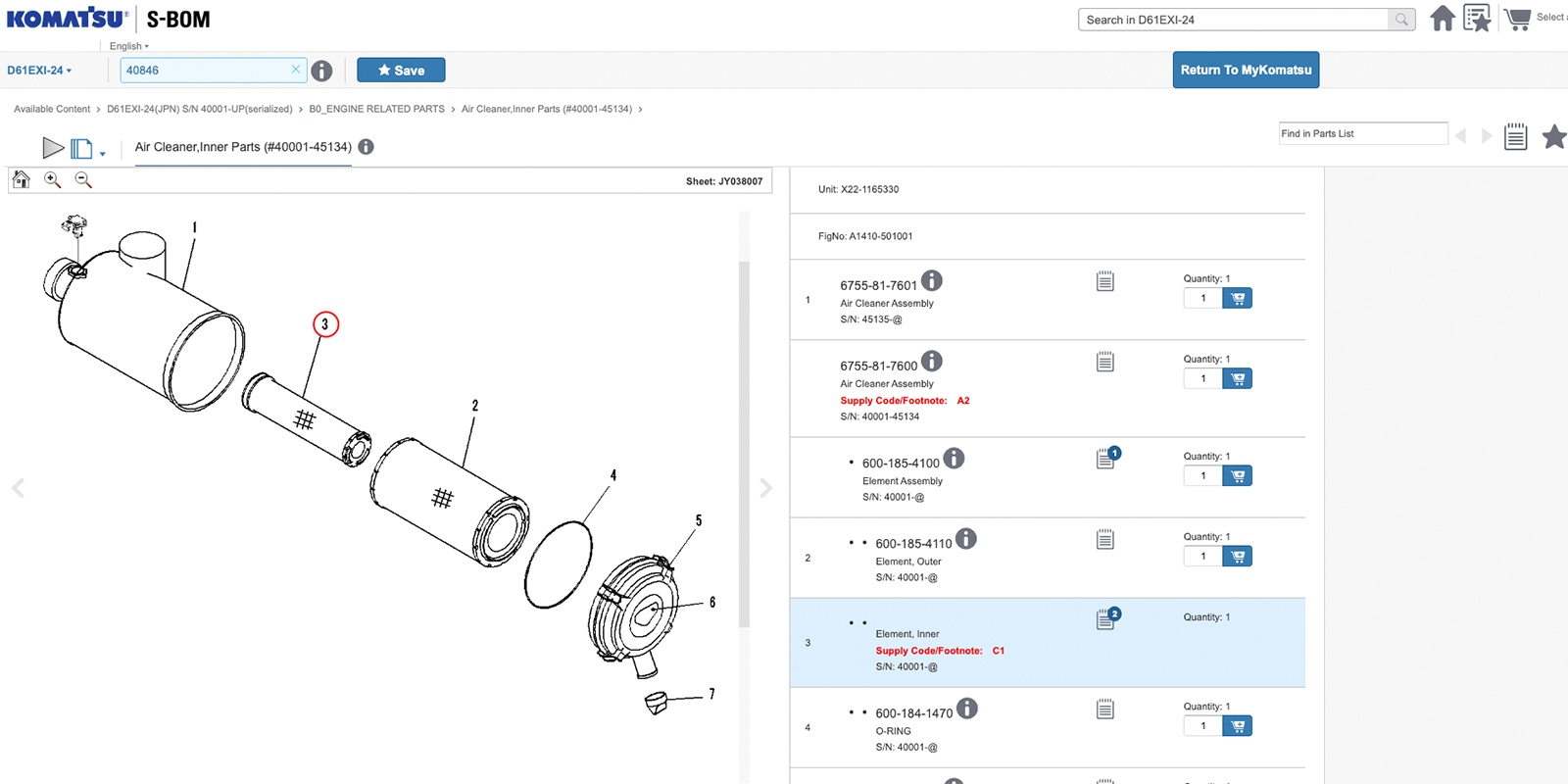
The My Komatsu blown-up parts diagrams are helpful for new technicians or for any technician who’s unfamiliar with Komatsu machines. In My Komatsu, you automatically have full access to detailed exploded diagrams showing part numbers and quantities for that machine. From the parts book page, you can easily view the diagram for your specific machine model, and you can add the parts you need directly to your cart.
To view the parts book for your machine:
- From the My Fleet page, click the machine’s serial or unit number.
- Under the machine image (on the left), click Parts Book.
- If you don’t see it, click Manage Quicklinks, check Parts Book, then click Apply.
- Navigate through the folders to find the diagram you need.
- If you’re not sure where to start, open the non-serialized folder for your machine. Parts diagrams are organized by area (engine, cooling system, electrical system, etc.).
3. Ordering the Right Parts for the Machine Directly to Your Dealer or Your Job Site
There are two main headaches that we want to help you avoid when you’re ordering Komatsu parts: (1) receiving the wrong part and (2) waiting a long time to receive a part. My Komatsu solves both of these issues.
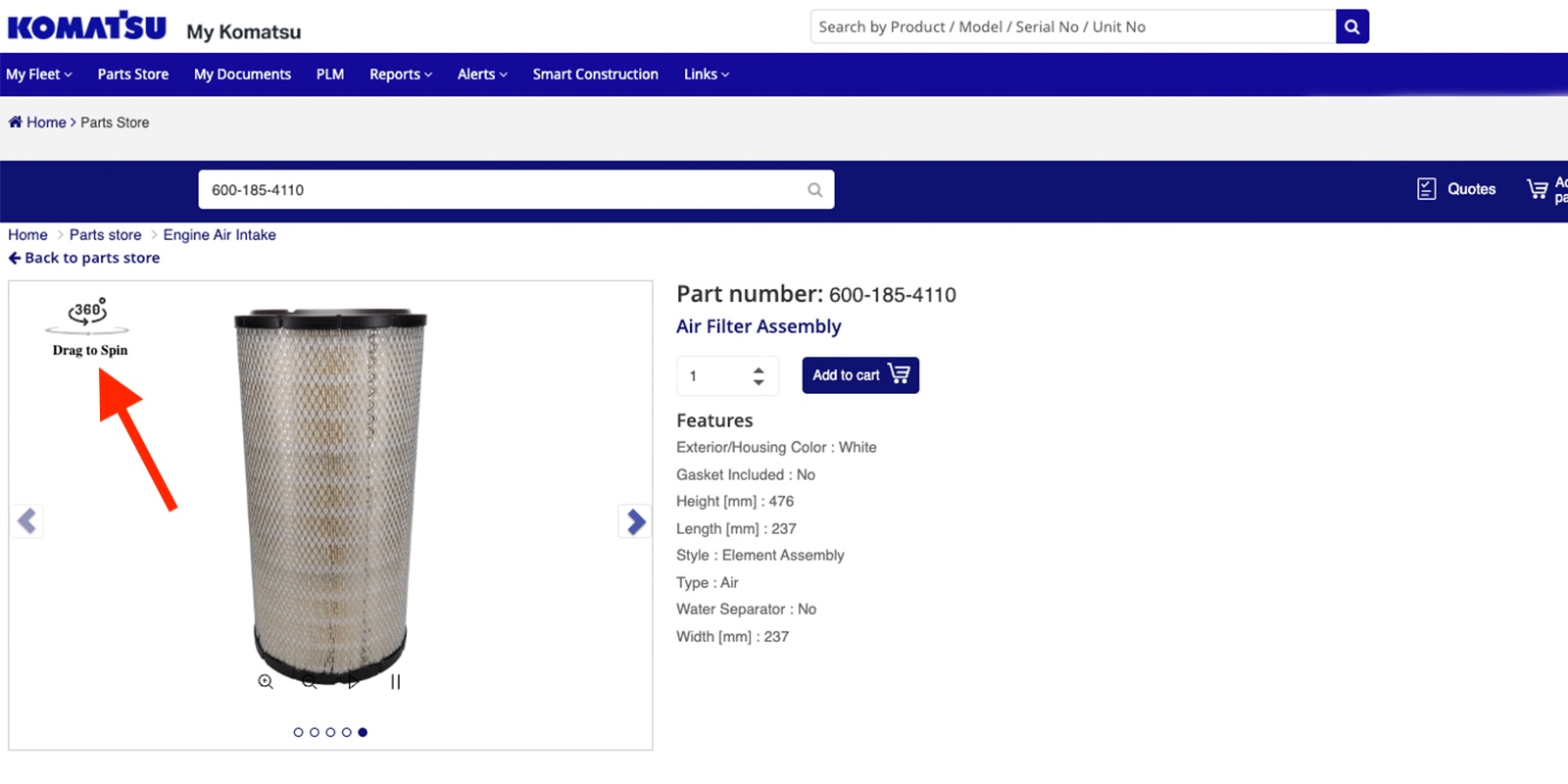
When you order parts through this dashboard, you can filter based on either the machine’s serial number or the serial number for the part you’re looking for. Many parts in this system have a 360-degree spin view option, which lets you move the part on the screen until you’re sure that it matches the one you’re looking at. From there, you can pick up the part at your local dealer or have it delivered directly from your dealer to your job site.
4. Clear Access into Warranty Coverage & Status
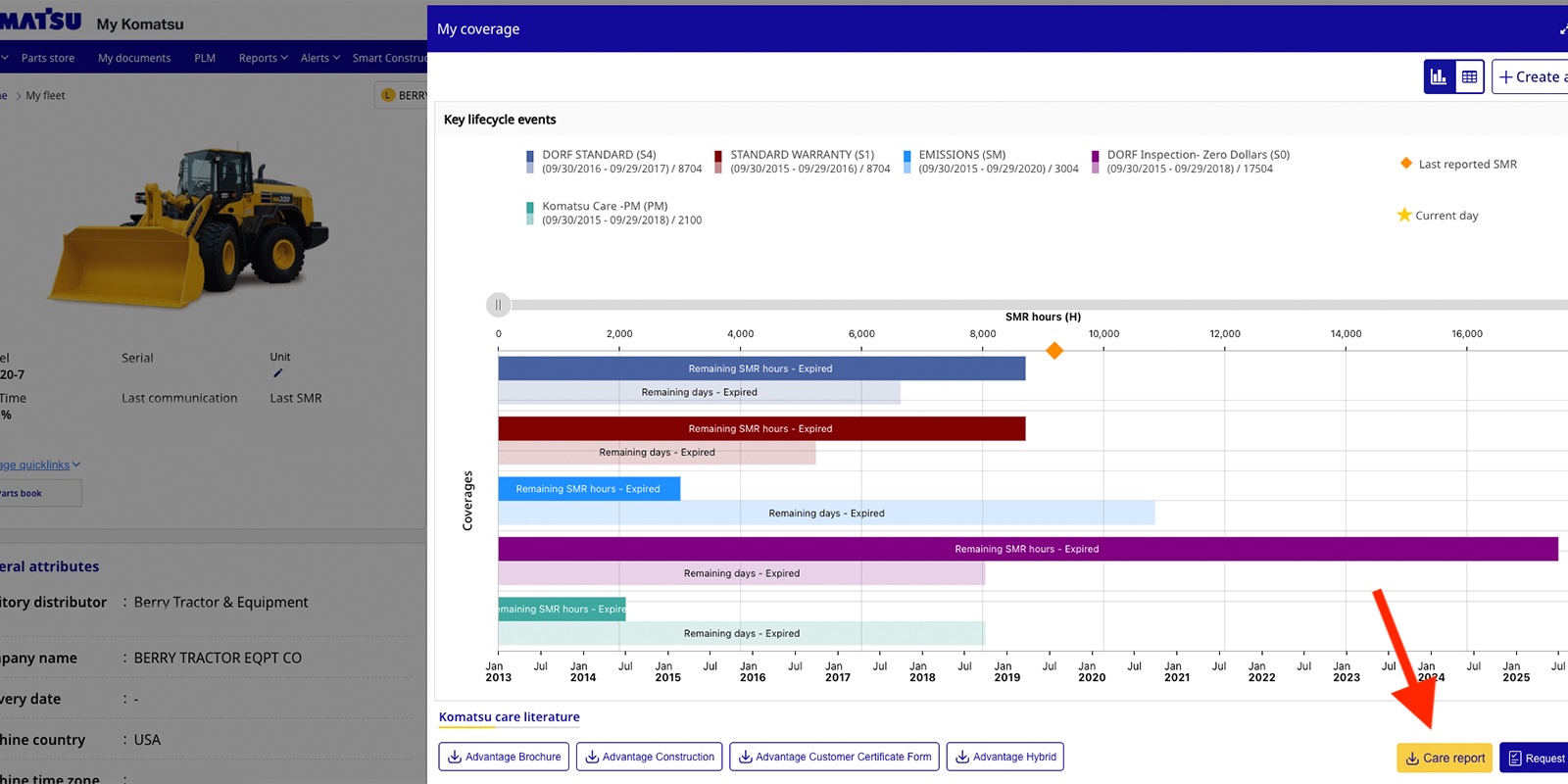
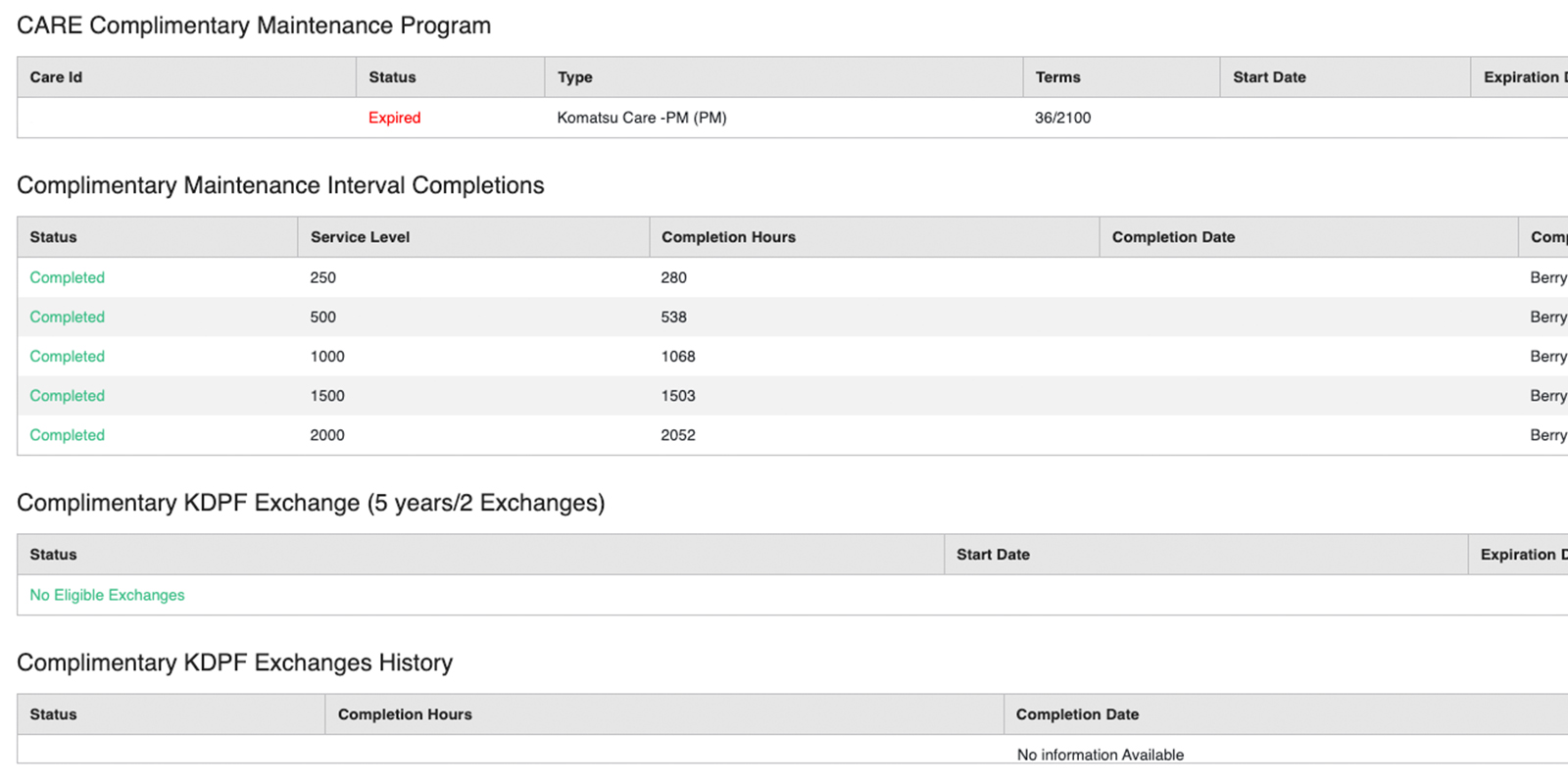
If you work with a large fleet, it can be difficult to keep track of each machine’s warranty coverage, especially in emergency repair situations. My Komatsu gives you a fast and easy way to see each machine’s maintenance history and warranty status. With this tool, you can see Komatsu Care information (for example: a particular machine received a complimentary 500-hour service and is still eligible for a complimentary 1,000-hour service), and you can also see what parts are included under warranty.
To view Komatsu Care information for your machine:
- From the My Fleet page, click the machine’s serial or unit number.
- Click the My Coverage tab (to the right of the machine image).
- Scroll to the bottom. Click the yellow Care Report button.
To view parts warranty information for your machine:
- From the My Fleet page, click the machine’s serial or unit number.
- Click the My Coverage tab (to the right of the machine image).
- Scroll to the bottom. Click the Advantage Brochure button.
5. Setting Alerts and Assigning Them to a Specific Technician
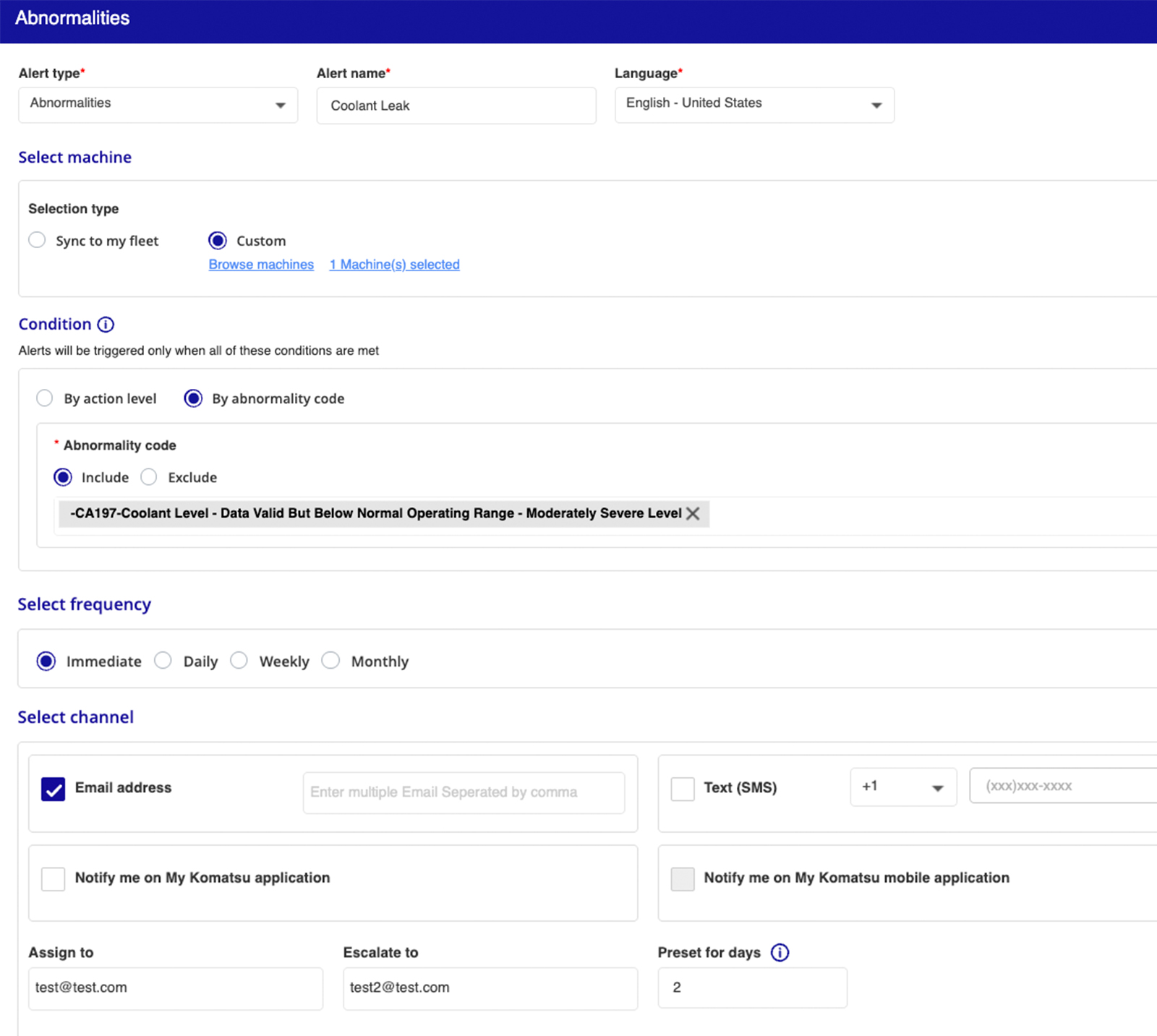
The My Komatsu dashboard is great for tracking ongoing issues with a machine. If you think a specific component may cause a problem in the future, you can set an alert tied to that machine and component. From there, the technology in the machine will automatically keep track of the component, notifying you when the alert is triggered (for example, if the coolant level drops below the normal operating range on a job site).
These alerts can also help you with shop communication. Through My Komatsu, you can assign a specific technician to receive the alert via email or text. If that technician doesn’t respond within the preset number of days, you can program the alert to automatically forward to a superior. This comes in handy if a technician is on vacation or doesn’t have access to their email.
To create an alert for your machine:
- Click My Alerts in the blue header.
- Click the blue Create Alert button (in the top right-hand corner).
- Enter the alert type, alert name, machine, condition, frequency, and contact information.
- Click Create.
Try My Komatsu Today
My Komatsu exists to help you save time and money. It takes the data your machine already collects and organizes it into a free, user-friendly dashboard. If you regularly handle maintenance on a Komatsu excavator, dozer, wheel loader, motor grader, or truck, we recommend learning to use My Komatsu.
Do you have questions? Are you looking for a My Komatsu demo for your team? Get in touch with your Berry Tractor Product Support Sales Rep today!